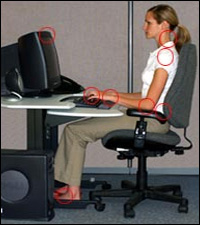
Maintaining good postures, such as straight wrists,
elbows close to the body and head straight and in-line with the
torso is often difficult because of a misalignment between the
user and the computer components and accessories.
For Example:
- A monitor positioned too high can cause you to tilt your head back,
which fatigues the neck and shoulder muscles.
- A keyboard tray that is too small can cause you to move the mouse to
a position of the desk that requires you to reach to perform mouse
tasks. This pulls the elbow away from the body and can cause you to
support your arm in an elevated position for an extended period of time.
- A keyboard that is too low causes you to bend your wrists at extreme
angles, which can cause the finger tendons and tendon sheaths to bend
around the bones of the wrist.
Working in awkward postures can irritate or strain
the bone-tendon-muscle connections.
- Muscles can be stretched or compressed causing them to be
inefficient and resulting in possible fatigue and overexertion.
- Non-neutral postures can pull and stretch tendons, blood vessels,
and nerves over ligaments or bone where they can become pinched and
restricted.
- Tendons and their sheaths can rub on bone and ligaments, which can
lead to irritation and fraying. This can lead to swelling within
confined areas such as the carpal tunnel, which then restricts nerves
and blood vessels.
- Tingling and numbness of the fingers and hands as well as pain from
tendinitis and tenosynovitis (inflammation of a tendon sheath) can
result.
A properly adjusted workstation can help minimize
awkward postures. Place the monitor in front of you at a height where you
can look straight ahead and not tilt your head forward or backward. Place
frequently used items, such as keyboards and pointing devices where you
can reach them easily. Adjust and arrange keyboard trays and chairs so you
don't have to bend your wrists up, down, or to the side. Adjust your chair
so your feet and back are well supported. Proper neutral postures allow
you to work with minimal stress on the musculoskeletal system.
Contact stress can occur either internally or externally. Internal stress
occurs when a tendon, nerve, or blood vessel is stretched or bent around a
bone or tendon. External contact stress occurs when part of your body rubs
against a component of the workstation, such as the chair seat pan or edge
of the desk. Nerves may be irritated or blood vessels constricted as a
result.
- You can experience contact stress to your forearms when you rest
them on the leading edges of work tables or, if the nerves in the
forearm are affected, your fingers and hands may tingle and feel numb,
similar to the feeling when you hit your "funny bone".
- You may experience pain and numbness in your legs if blood
circulation is cut off by contact with the leading edge of a chair.
- Your forearms and wrists can be affected if wrist rests have sharp,
hard leading edges.
- Tendons can be damaged when repetitive finger motion tasks are
performed with a bent wrist.
To help solve these problems carefully select wrist
rests, chairs, and desk surfaces and take frequent rest and stretch breaks
to minimize the amount of contact stress that you may experience. Adjust
your workstation to maintain neutral wrist postures.
Force is usually thought of as a strenuous physical exertion, such as when
lifting a heavy weight or pushing a heavy load. Computer work seldom
requires this type of strenuous exertion, but there are tasks that require
concentrated force that can affect smaller, localized muscle groups.
What are some examples?
- Your finger and forearm muscles may become sore if you use a
pointing device at a setting that is so sensitive that it is hard to
control. Hand and arm muscles must work continually to keep the
device steady.
- Your shoulder and neck muscles are continually being used to lift
the arm away from your body if the mouse is placed too far away.
- The muscles of the back can become strained if you must tilt your
head back to view a monitor that is too high.
Although the muscle is usually the first point of
pain when these injuries occur, the tendon, which attaches the muscle to
bone, can also be affected. Localized pain, stiffness, and tenderness can
signal that the muscle or tendon has been exerted beyond its capacity.
To help avoid these problems, properly arrange
computer components on the work surface to maintain neutral postures and
provide adjustable furniture to minimize the amount of time spent in one
posture.
The arrangement of work components and the purchase of new equipment should
encourage the following body postures:
- Keep your head and neck vertical and in-line with the spine, not bent or twisted.
- Keep your torso straight, not twisted, especially when lifting or bending.
- Generally, whether standing or sitting, keep your torso vertical or within 20 to 30 degrees of vertical.
- Keep your elbows close to your body by avoiding frequent reaching to your side, in front, or above your head.
- Keep your forearms approximately parallel to the floor.
- Maintain a neutral forearm posture whenever possible, by not
rotating your forearm repeatedly, especially when your wrist is bent.
- Keep your wrists straight and in-line with your forearms, not bent
up or down or to either side.
- Keep your thighs approximately parallel to the floor or your hips
slightly higher than your knees.
- Keep your feet firmly on the floor and your legs approximately
perpendicular to the floor.
- Place your keyboard and mouse close together at about the same
height to reduce reaching.
- Use a fully adjustable chair so your body is fully supported and you
can change your body postures frequently.
- Use adjustable height work surfaces so all users can sit with their
feet firmly on the floor. If the work surface is not fully adjustable,
use an adjustable foot rest.
- Place all frequently used components such as monitor, keyboard, and
mouse in front of you so you don't have to turn your head from side to
side.
- Place your monitor low enough so its top is not above your
horizontal line of sight. This will limit the need for you to tilt your
head backward to see the screen.
- If laptops are to be used as primary work computers where intensive
keyboard use is necessary, provide auxiliary, full-sized, keyboards and
monitors.
 |
 |
Many computer workstation tasks are highly repetitive. You may perform
the same motions repeatedly at a fast pace and with little variation.
When motions are isolated and repeated frequently for prolonged
periods, there may be inadequate time for your muscles and tendons to
recover. Combining repetitive tasks with factors such as awkward
postures and force may increase the risk of injury.
- Computers require little task variation. Old typing activities, such
as adding paper or mechanically advancing pages, have been reduced or
eliminated. Users can stay in their chairs and type or perform mouse
work for an almost unlimited amount of time. Under these conditions, a
proficient typist can easily perform more than 18,000 keystrokes per
hour. These repetitive motions can lead to tendon and tendon sheath
injuries, especially if the wrist is bent during the activity.
- Similar repetitions occur when using a pointing device such as a
mouse. Here, the hazard may be greater because the motions are often
concentrated in only a few fingers of one hand.
- A computer operator may remain in essentially the same posture for
an entire shift. This forces a few isolated muscles to repeatedly
activate to accomplish a task such as holding the head up or focusing on
a computer screen.
- A poorly designed workstation may cause you to repeatedly reach to
use a mouse or answer the phone. This can fatigue the muscles of the
shoulder and irritate the tendons.
You can reduce repetition by properly arranging
the workstation and its components. For example, a mouse that is
placed close to the keyboard should minimize repetitive reaching.
However, even the best designed workstation can not eliminate all
highly repetitive motions, especially for data input. For this reason,
it is extremely important to maintain good posture by providing
adequate adjustability at the workstation. You should perform all hand
tasks with the wrist in a straight, neutral posture to allow the
tendons to slide easily without interference.
The following work process suggestions may also help reduce
repetition.
- Task Rotation or Job Enlargement - If you perform a
variety of tasks, when possible, intersperse them throughout the
work day. Minimize long blocks of uninterrupted computer time by
doing other non-computer tasks such as photocopying, phone work,
cleanup, etc.
- Micro Breaks or Rest Pauses - Build short micro pauses into computer
use sessions. Frequent short breaks are desirable. Every hour, take a
five-minute break from computer tasks. Look away, stretch, get up, or
walk. These brief pauses provide time for muscles and tendons to
recover.
It is important to report signs and symptoms as early as possible to
prevent serious injury or permanent damage. Users at risk for MSDs
associated with computer use may experience some of the following
signs or symptoms:
- Numbness or a burning sensation in the hand
- Reduced grip strength in the hand
- Swelling or stiffness in the joints
- Pain in wrists, forearms, elbows, neck, or back
- Reduced range of motion in the shoulder, neck, or back
- Dry, itchy, or sore eyes
- Blurred or double vision
- Aching or tingling
- Cramping
- Weakness
Although these symptoms may not necessarily
lead to an MSD, if experienced, the user should make an evaluation of
their working positions and their workstation layout. The
checklists may be
helpful.
|